Managing Part Requests: Edit, Deactivate, and Delete
Your part request is live, but you spotted a typo? Or you've already found the part and want to remove the request from the marketplace? No problem! hank gives you full control over your part requests.
In this article, we'll show you how to edit, deactivate, and if needed, permanently delete your requests.
Finding Your Part Requests
All your part requests are located in the "My Requests" tab on the dashboard. Here you can see the status of each request at a glance - and below each request you'll find buttons to Share, Edit, and Deactivate.

Tip: Deactivated requests are automatically sorted to the bottom, keeping your active requests at the top.
Editing a Part Request
As long as your request is active, you can edit it at any time. Simply click the "Edit" button below your request.
What You Can Change
In edit mode, you can adjust the following details:
- Part Number: If you've found the correct number
- Description: Add details or correct errors
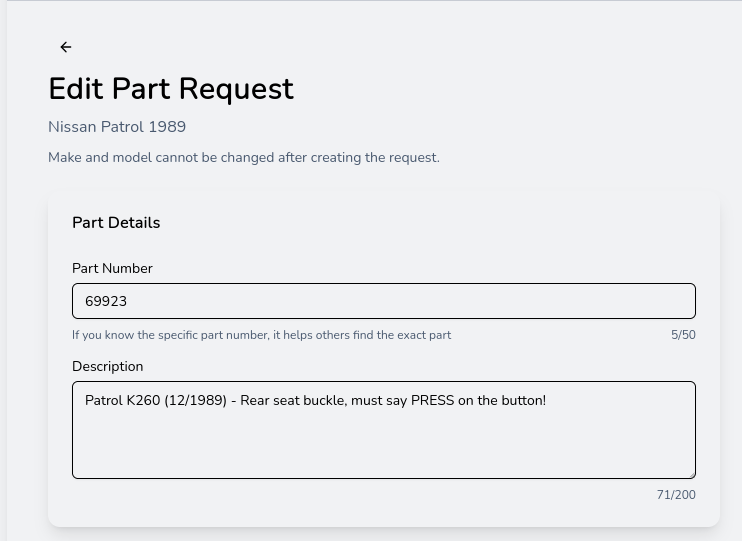
Important: Vehicle make, model, and year cannot be changed after creation. This information is permanently linked to your request.
Managing Images
You can also update the images of your request:
- Add new images: Via drag & drop or by clicking the upload area
- Remove images: Click the red X next to an image
- Reorder images: Use the arrows or drag images to rearrange them
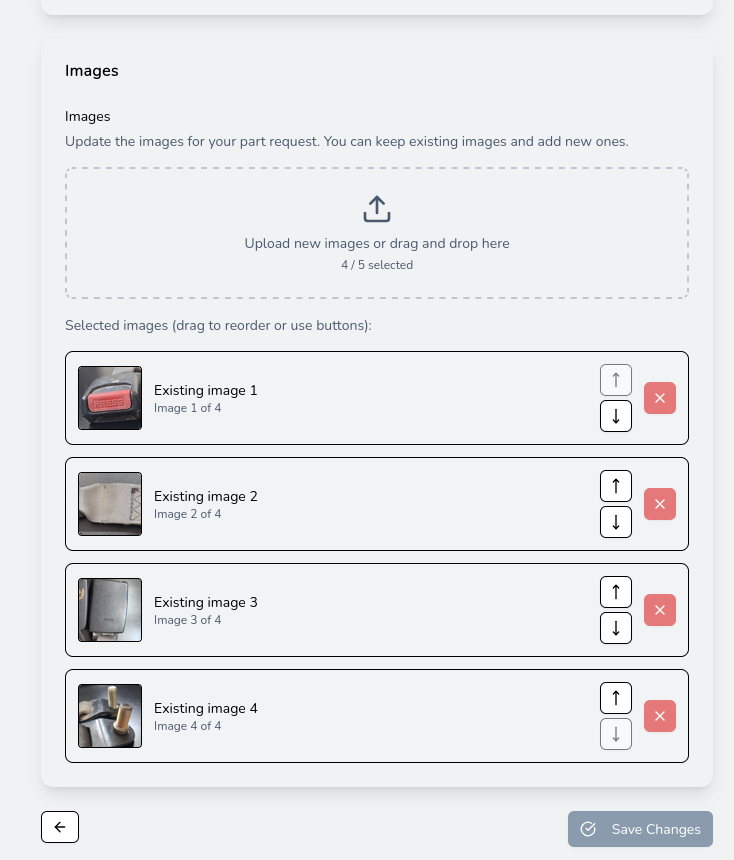
Click "Save Changes" to save your modifications.
Deactivating a Part Request
When you've found the part you were looking for, or no longer need the request for other reasons, you can deactivate it. Click the "Deactivate" button to do so.
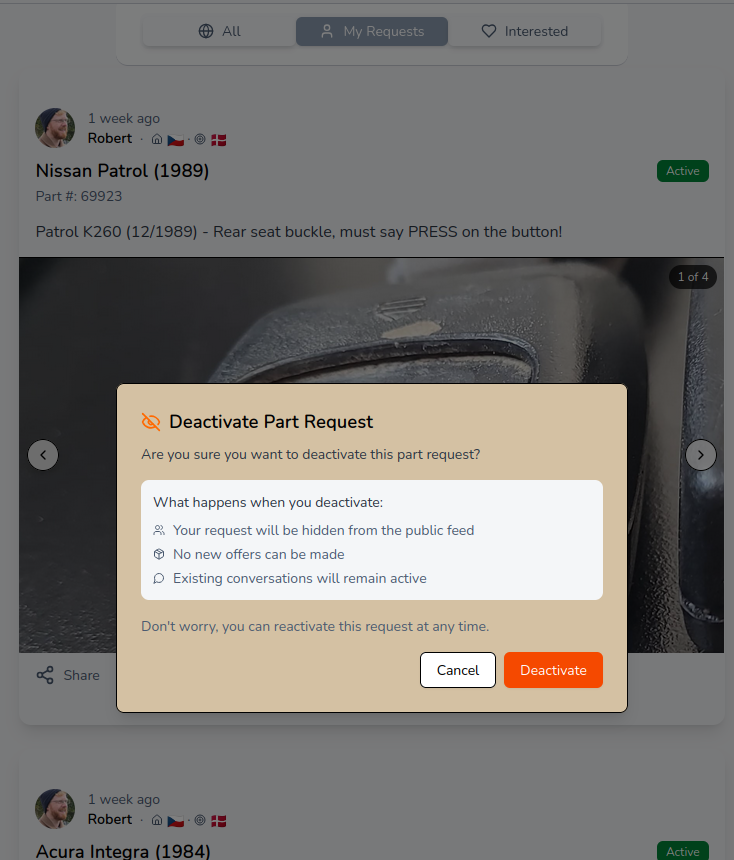
What Happens When You Deactivate?
- No longer publicly visible: Your request disappears from the public feed
- No new offers: Sellers can no longer submit new offers
- Existing conversations remain active: Ongoing conversations with sellers continue to work
- Share link stops working: The request is no longer accessible via direct link either
- No longer editable: Deactivated requests cannot be edited
Don't worry: You can reactivate a deactivated request at any time if you want to receive offers again.
Deleting a Part Request
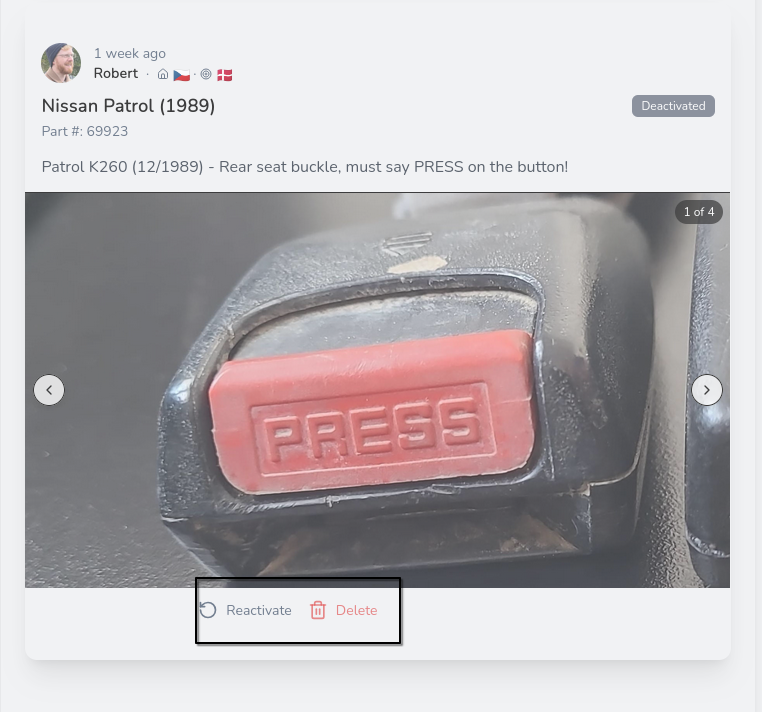
Want to permanently remove a request? You must first deactivate it. Only deactivated requests can be deleted.
For deactivated requests, two buttons appear: "Reactivate" and "Delete".
The Deletion Process
When you click "Delete", a confirmation dialog opens:
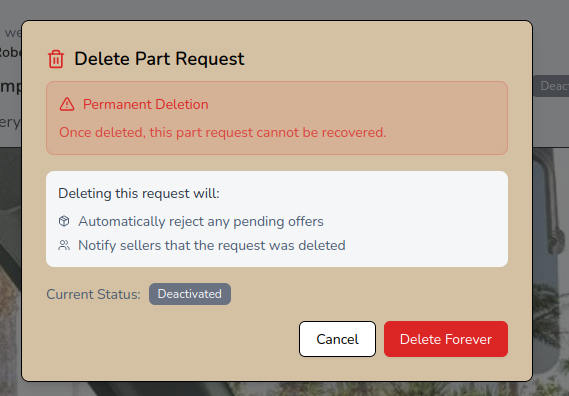
Warning - Permanent Deletion:
- Your request will be permanently removed from your dashboard
- Any pending offers will be automatically rejected
- Sellers will be notified that the request has been deleted
- This action cannot be undone
Click "Delete Forever" to permanently delete the request.
The typical flow:
- Create → Request is active and visible
- Edit → Changes possible at any time (while active)
- Deactivate → Found the part? Remove request from marketplace
- Optional: Delete → Permanently remove the request
Practical Tips
- Deactivate instead of delete: If you're unsure, deactivate the request first. You can reactivate or delete it later.
- Use the edit function: Better descriptions and images lead to more and better offers.
- Check before deleting: Make sure all ongoing transactions are completed before permanently deleting a request.
Happy hanking!
Robert - hank team